How the client portal works
A tour of what your clients see when they log into the portal — and why it's worth giving them access.
The Studiohaus client portal is a white-labeled space your clients log into to follow their project. It's branded with your logo and colors (not ours), and it gives them one place for everything they need: documents to review, designs to approve, invoices to pay, and a chat thread with you. This article walks through what they see.
Why give clients portal access
Without a portal, the same conversation sprawls across email, text, and three shared folders. The portal collapses that into one branded surface that:
- Looks like your studio, not Studiohaus.
- Surfaces only what the client cares about (no internal notes, no margin math).
- Cuts down on "did you get my…" follow-ups.
- Gives you a clean paper trail of approvals, signatures, and payments.
The portal is part of every Studiohaus plan, so there's nothing extra to buy to turn it on.
Logging in
The portal uses magic-link sign-in — no passwords. The client enters their email and gets a one-click link. Clicking it opens a quick "Sign in to your portal" page; one tap there drops them into their project. (The extra tap is deliberate — it keeps email security scanners from silently burning the link before the client uses it.)
Each link is good for 30 minutes and works once. Once signed in, the session lasts 30 days before they need a fresh link. You can also generate and share a link yourself — see Sharing the client portal with a client.
What clients see, tab by tab
The portal's left nav has these sections:
Home
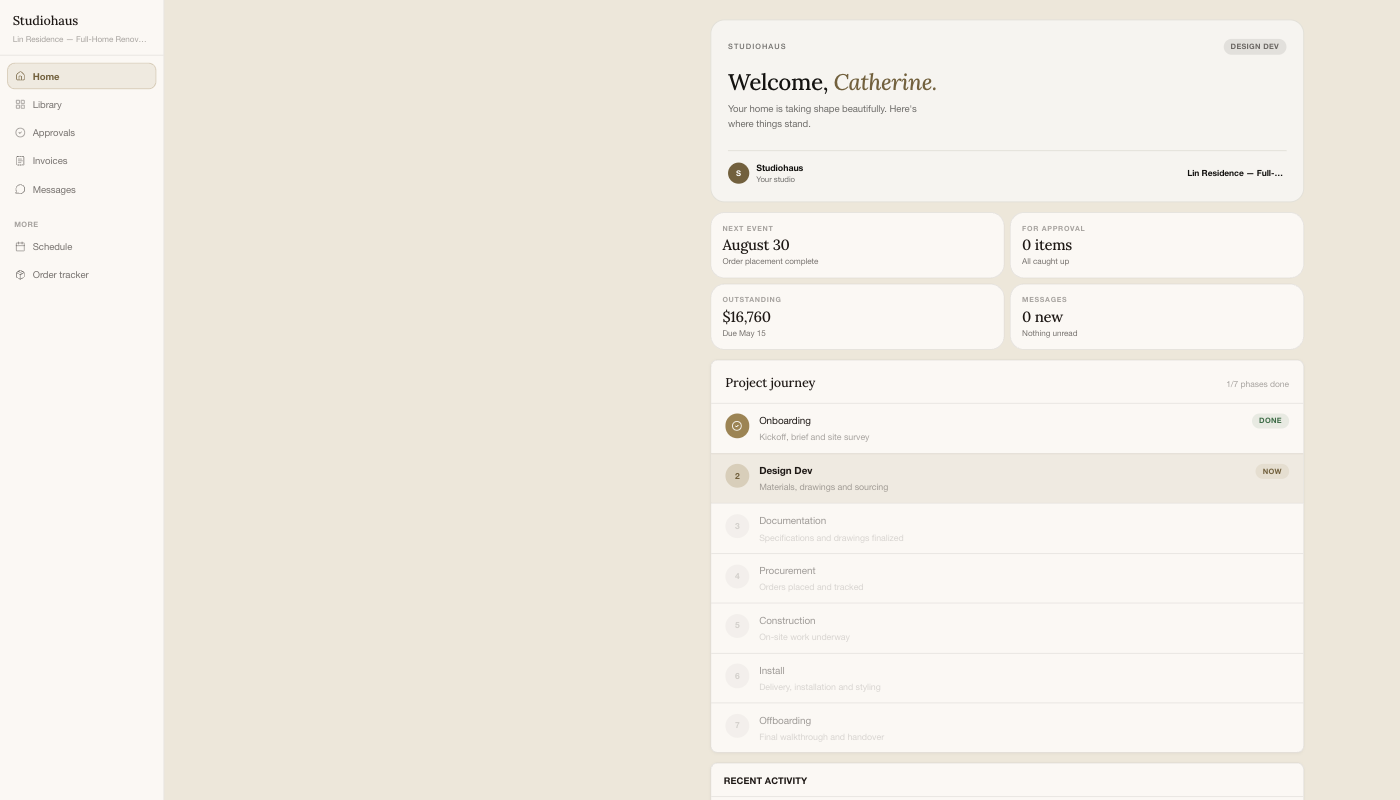
The landing page — a welcome by name, the project's current phase, the next event on the calendar, what's outstanding on invoices, unread messages, how many items await their approval, and the Project journey: the seven phases from Onboarding to Offboarding, with the current one marked.
Library
Everything you've shared to read or browse, in two shelves: Design boards (the mood and concept boards you've published) and Project files (plans, drawings, spec sheets, contracts, change orders). Both are empty until you share something. (Contracts are signed from the link you send — see Sending a contract.)
Approvals
Items and selections you've sent for sign-off. When you send one, you choose who needs to approve — primary client, partner, project manager, the whole household — and each approver gets their own email with a one-click link to a single-page review where they Approve or Decline (with an optional note). Approvers don't need a portal login or password.
The request stays pending until everyone decides. If any one approver declines, the whole request flips to declined (you'll see who and why); once everyone approves, it's approved. Approvers who do have portal access see the same request here in the Approvals tab and can sign there instead — email and portal sign-offs are interchangeable.
Invoices
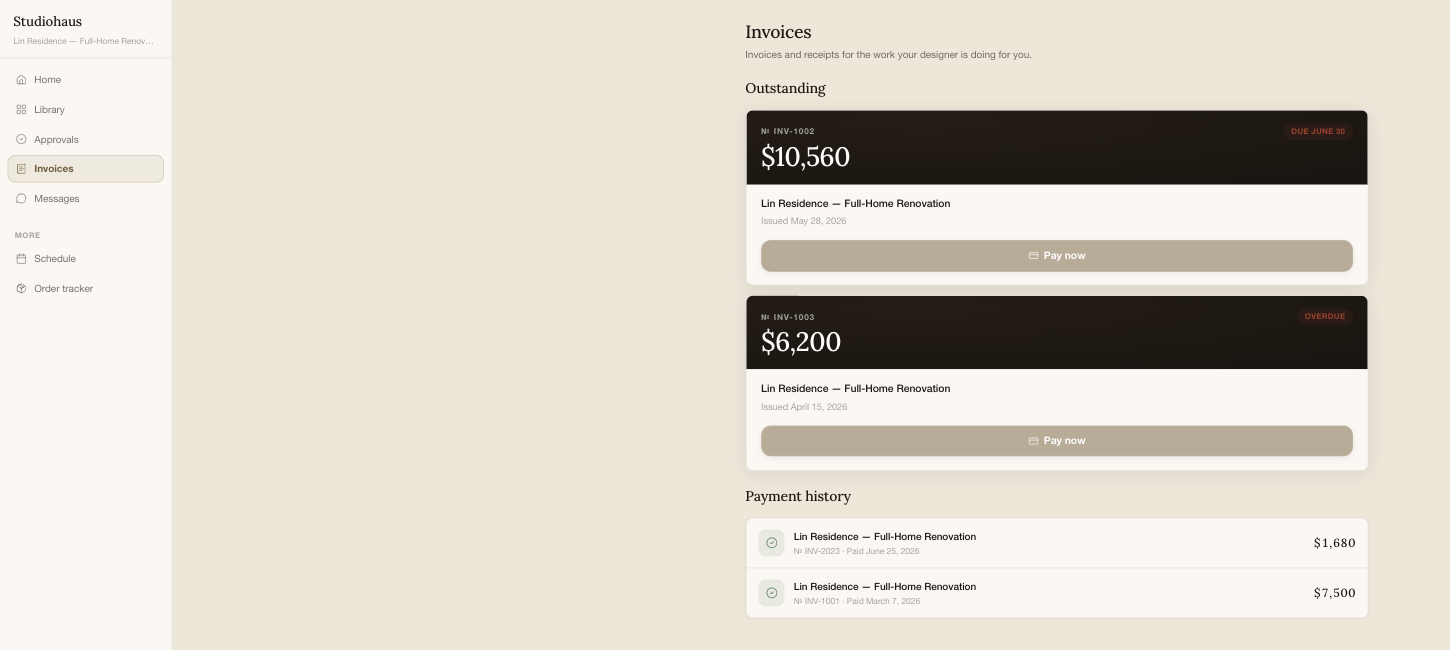
Outstanding invoices first, each with its number, amount, due date, and a Pay now button that takes card payment; below them, the payment history with what's already been paid and when. Overdue invoices are flagged.
Messages
A threaded chat between the client and your team — the same thread you see in the project's Messages tab. Good for questions that don't warrant a call but shouldn't get lost in email.
Schedule
A read-only view of the project milestones and dates, so the client knows what's coming without weekly check-ins.
Order tracker
Where the client can watch what's been ordered for their project move through to delivery, without asking you for a status update.
What clients don't see
The portal hides:
- Your internal notes on the client and project.
- Margin and markup math on line items.
- Files marked internal-only.
- Other clients' projects — each session is scoped to one client.
So it's safe to share liberally; there's no risk of a client seeing something they shouldn't.
Branding
The portal is white-labeled to your studio — logo, brand color, accent color, even the email sender (within deliverability limits). Set it up in Settings → Branding; changes there reach every client portal session within seconds.