Sharing the client portal with a client
Two ways to give a client access — email invite or copy-paste link — and when to use each.
Once your branding is set, sharing the portal with a client takes about ten seconds. There's no separate "portal" account to create — the client signs in with the email you have on file, and the system handles the rest. This article walks through the two ways to send them in.

Where the share controls live
There are two places, and they do the same job:
On the project. Open any project and look at the top right. Share with client drops open two choices:
- Send invite email — mails the sign-in link to the address on file (the menu names it, so you can see where it's going before you click).
- Copy magic link — puts a fresh link on your clipboard. It expires in 30 minutes.
Beside it, Preview as client opens a read-only view of their portal (forms disabled), so you can see exactly what they'll see before anything goes out.
On the Client Portal page. For the whole roster at once, open Client Portal in the left nav. Every client gets a row showing how many projects they can reach, whether they've been invited, and when they last signed in — with Send, Copy link, and Preview on each row. The counters up top track active portals, pending invites, and last access across the studio.
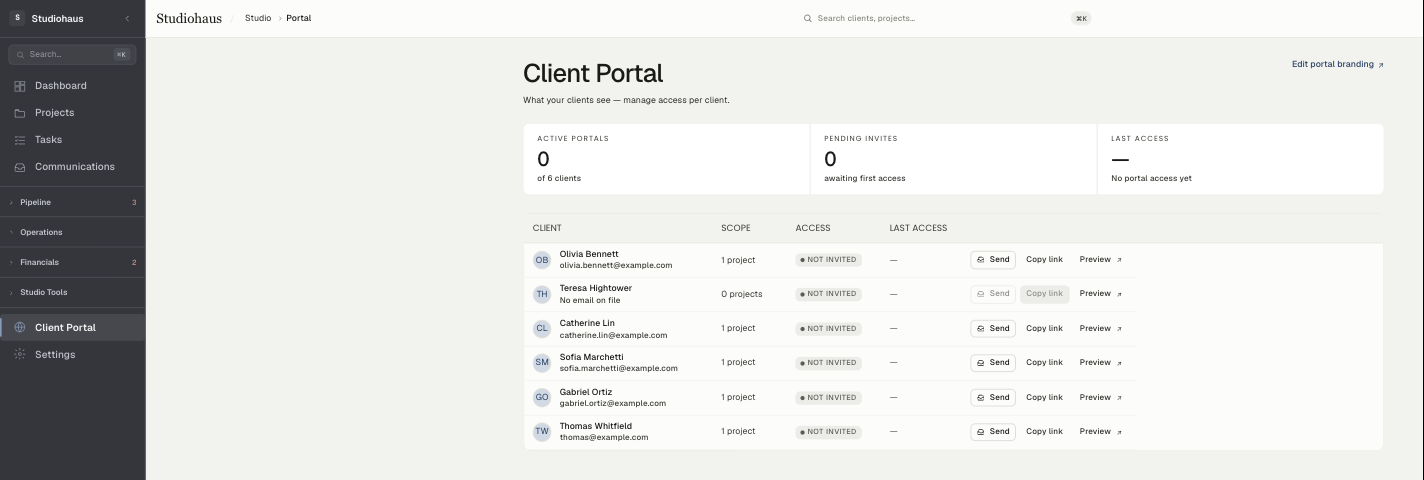
If there's no email on file, that client's Send and Copy link stay disabled — there's nowhere to send the link. Add an email to the client record and they light up.
Path A: send the invite email
Choose Send invite email. The system generates a fresh magic link (30-minute expiry), emails it to the address on file, and shows a confirmation ("Invite sent to clientname@example.com").
The email is branded with your studio — your logo, your colors, and your studio's name as the sender — and carries a single button to open the portal. The client clicks it, confirms once, and they're in.
Use this when:
- You're rolling out portal access to a client for the first time.
- The client expects to find the link in their inbox (most do).
- You want a record of when access was sent.
A note on deliverability
The email is sent through Resend, and most major providers (Gmail, Outlook, iCloud) deliver it within seconds. If a client says it never arrived, ask them to:
- Check their spam folder.
- Look for a message from your studio's name (the sending address is a studiohaus.app address, so searching their inbox for your studio name finds it fastest).
- Confirm the email on the Client portal card is correct — a typo here is the #1 cause of "I didn't get the link."
If they still can't find it, use the copy-link path below.
Path B: copy a magic link
Click Copy magic link. The system generates a fresh link, copies it to your clipboard, and shows the expiry. Paste it into a text, a chat, an existing email thread — wherever your client is already paying attention.
Use this when:
- You're already on the phone or texting and want them looking at something right now.
- The email path failed and you need a faster fallback.
- You want to check the portal yourself (paste the link into an incognito window).
The link is good for 30 minutes from when you generate it, and works once. If they don't click in time, just generate another.
Rate limits
To prevent accidental abuse, link sends are capped at 5 per client per hour. If you hit the cap you'll see a "try again in an hour" message — in normal use you'll never come close.
What the client experiences
Whether you emailed it or shared a copied link, the experience is the same:
- Click the link.
- Land on a quick "Sign in to your portal" page and tap to confirm.
- Arrive in the portal, signed in, on their Dashboard — and stay signed in for 30 days before needing a new link.
No password, no username, nothing to remember. The email is the credential.
Removing access
There's no one-click revoke in the current build, and it's worth knowing why it doesn't need one in most cases: access is tied to the client (not a single link), and a signed-in session lasts up to 30 days, refreshing each visit. To wind access down, stop sending new links and remove the email on file — that disables the Send and Copy buttons so no new links can go out, and the existing session lapses on its own within 30 days of the client's last visit.