Creating your first lead
How to capture an inbound conversation as a lead, and what each field is for.
A lead in Studiohaus is anyone who's expressed interest in working with you but hasn't signed yet. The DM that came in last night, the referral from your dentist, the form submission from your website, the woman you met at the gallery opening — they're all leads until you turn them into clients.
This article walks through capturing one by hand. If your website's contact form is wired up, those leads land here on their own — but knowing the manual path first means you understand every field either way.
When to capture a lead
The honest answer: every time. Even casual conversations. The cost of capturing a lead is twenty seconds; the cost of losing track of a good one is much higher.
You can always delete a lead later if it goes nowhere. You can't get back the context of a conversation you didn't write down.
How to add one
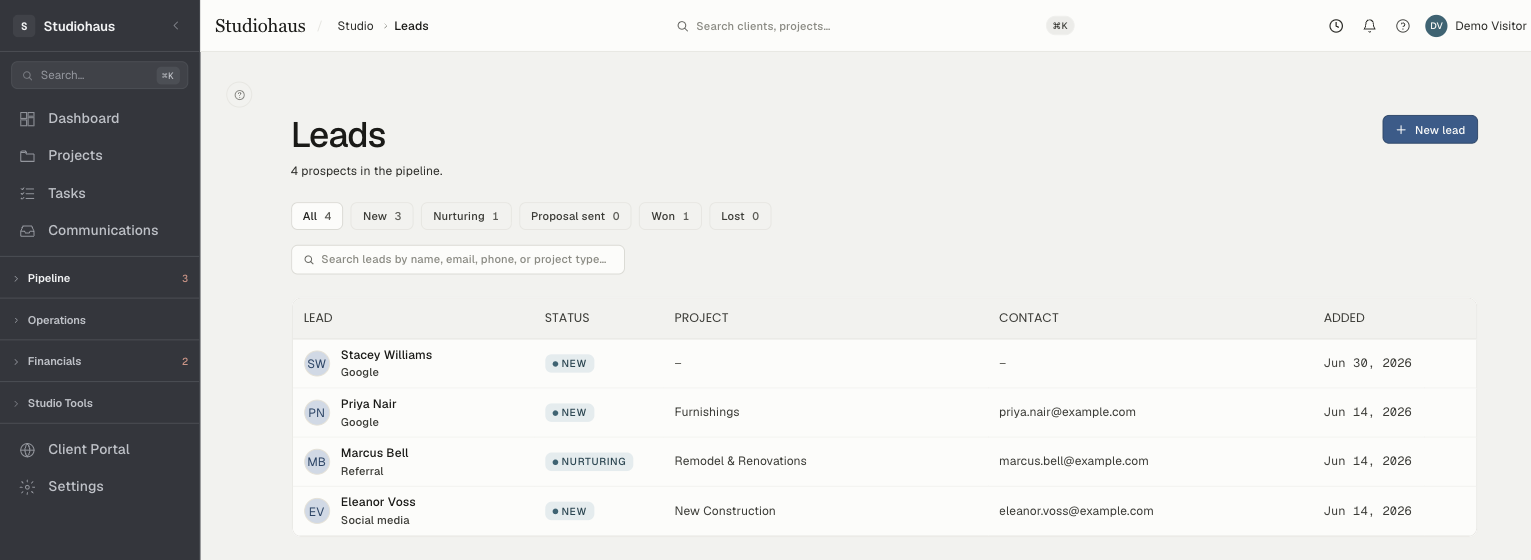
- In the left nav, open Leads (it sits under Pipeline).
- Click New lead at the top right.
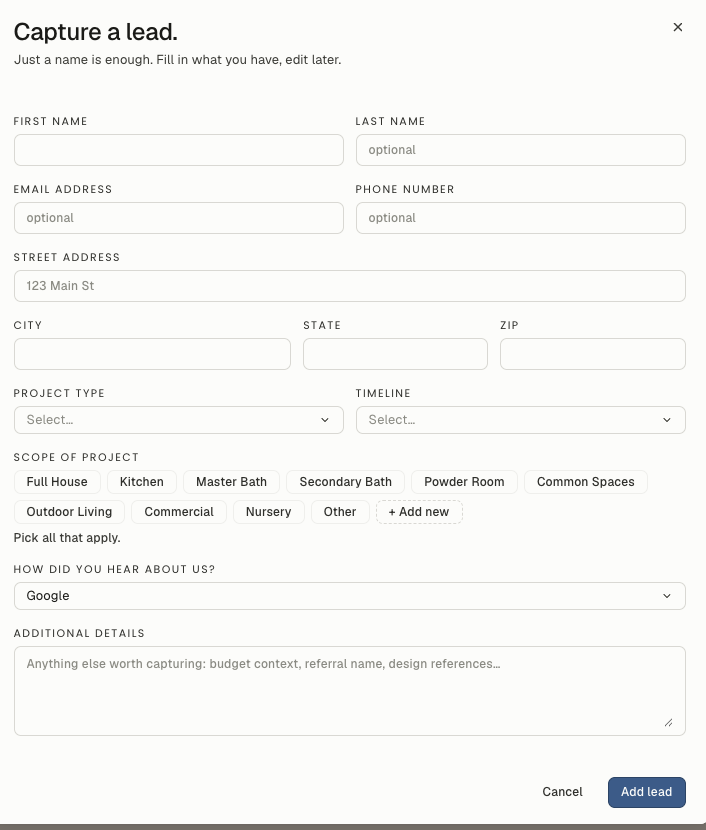
- The "Capture a lead" dialog opens.
Contact
- First name (required) — at minimum, this. Everything else is optional.
- Last name — leave blank if you don't have it; you can add it later.
- Email and Phone — at least one is worth getting. You can't share the client portal without an email.
- Project address — where the work would happen. Not required, but useful: the route planner pulls it in as the destination when you plan a site visit, and you'll be glad it's there later when you've forgotten the cross-street.
Project intake
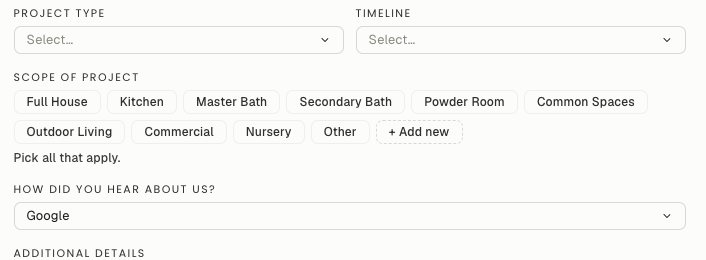
These three fields are drawn from lists your studio controls. The options below are what ship by default — and you can shape them two ways: edit the full list anytime under Settings → Custom values, or add a new option on the spot with the "+ Add new…" choice right inside the dialog. Either way, your changes stick.
- Project type — one choice. Out of the box: Furnishings, Remodel & Renovations, Virtual Design, New Construction, Hospitality, Other. These categories drive your reporting later, so pick the closest fit. (Leads captured before a given option existed keep their original value; nothing is rewritten under you.)
- Timeline — Now, 1–2 months, 3–4 months, or 6–9 months. Anything further out than nine months belongs in the notes.
- Scope of project — a multi-select. The starter list covers the usual spaces — Full House, Kitchen, Master Bath, Powder Room, Outdoor Living, and so on — and you tailor it to how your studio actually talks about work. A whole-home consult might get several; a single-room refresh, just one. The chips toggle on and off, no minimum, no maximum.
Attribution
- How did you hear about us? — a single choice, also yours to customize. It's recorded on the lead and shown on their detail page and across your leads list, so you keep an honest read on where work comes from. Be honest about the real channel even when you're guessing on a call ("I think it was Instagram?" — that's Social media). Defaults to Google, with Social media, Phone, Referral, Web form, and Other alongside it; need a channel that isn't listed? Add it inline and keep moving.
Additional details
A free-text box for everything that doesn't fit a field. Paste the actual DM, scribble what they said on the call, drop in budget context, design references, the referral name, the timeline-but-actually qualifier. Future-you will thank present-you.
Save it
Click Add lead. The dialog closes; the lead appears at the top of your list with a New status pill. That's it.
What happens next
A new lead sits at status new — you haven't engaged yet. From the list, click the lead's name to open their detail page. The status actions live in the sidebar on the right.
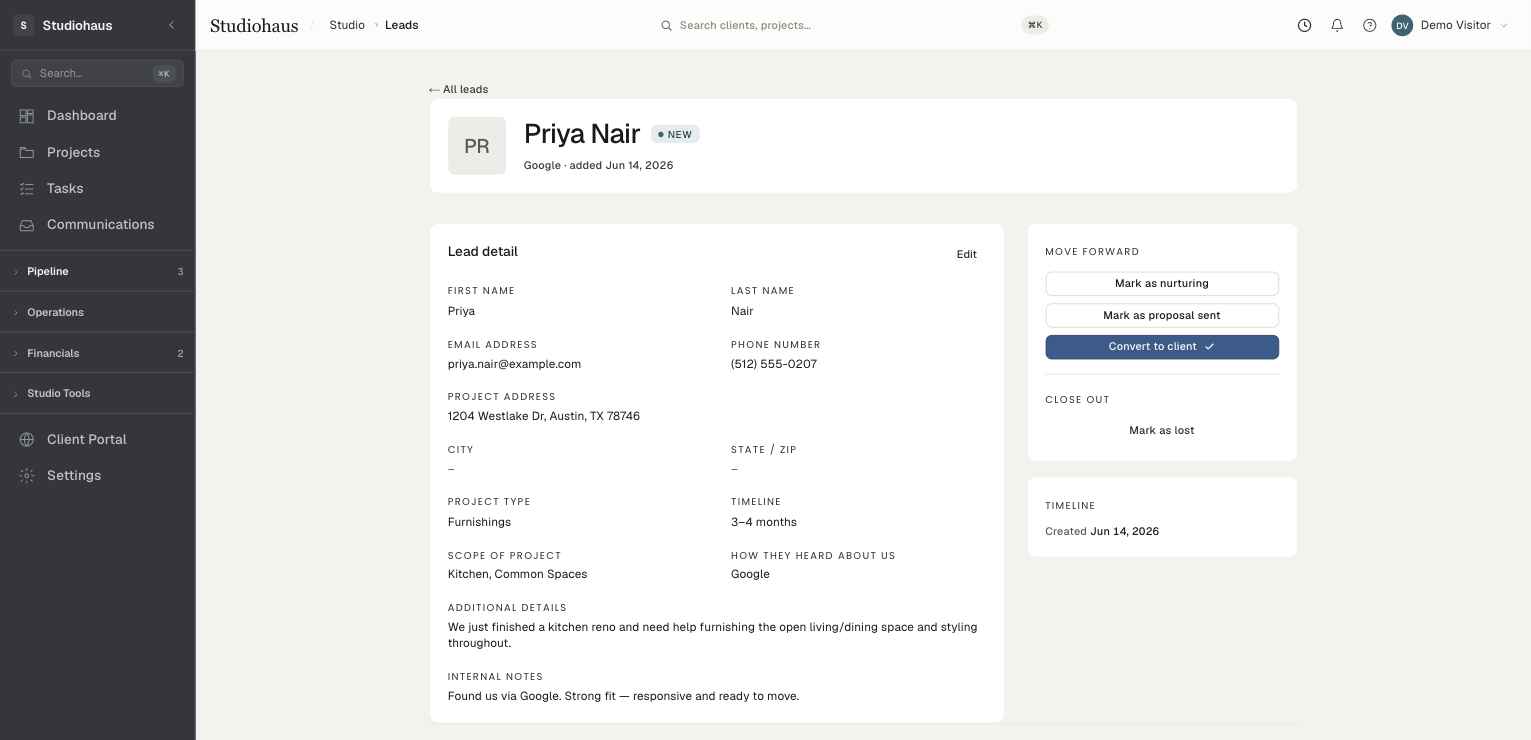
From there:
- Mark as nurturing — moves the lead to
nurturing. Use it once you've replied, hopped on a call, sent a portfolio. It means "active conversation." - Mark as proposal sent — moves the lead to
proposal sentonce a written proposal or quote is out the door and you're waiting on a yes or no. Available fromnewornurturing. - Convert to client — the blue button, and the one you press when they've signed. It creates a client record carrying their name, email, phone, and project address straight over, marks the lead
won, and drops you on the new client's page. - Mark as lost — they ghosted, picked another firm, ran out of budget. Jot a reason if you like. Lost leads stay in your history (the Lost tab) so you can re-open them if they resurface.
- Edit — the pencil at the top of the lead card fixes typos, adds fields you didn't have at first capture, and updates Internal notes (private — never shown outside your firm).
The leads pipeline at a glance
The tabs across the top of Leads filter by status:
- All — everyone except won (won has its own tab).
- New — untouched. The top of your inbox.
- Nurturing — active conversations worth moving.
- Proposal sent — awaiting a decision after you sent terms or a quote.
- Won — converted to clients. (Also under Clients.)
- Lost — dead, but searchable.
The number on each tab counts the whole firm's leads in that bucket, not just whatever you've typed into search.