Design boards: the basics
What a design board is, how to build one from your product library, and how to present it.
A design board is the presentation-grade version of the thing you'd otherwise assemble in Photoshop or InDesign at eleven at night: the chair, the sconce, the rug, the paint chip, arranged on one page for a client to look at and react to. Studiohaus builds them from the product library you're already keeping, so the specs, prices, and vendors ride along instead of being retyped.
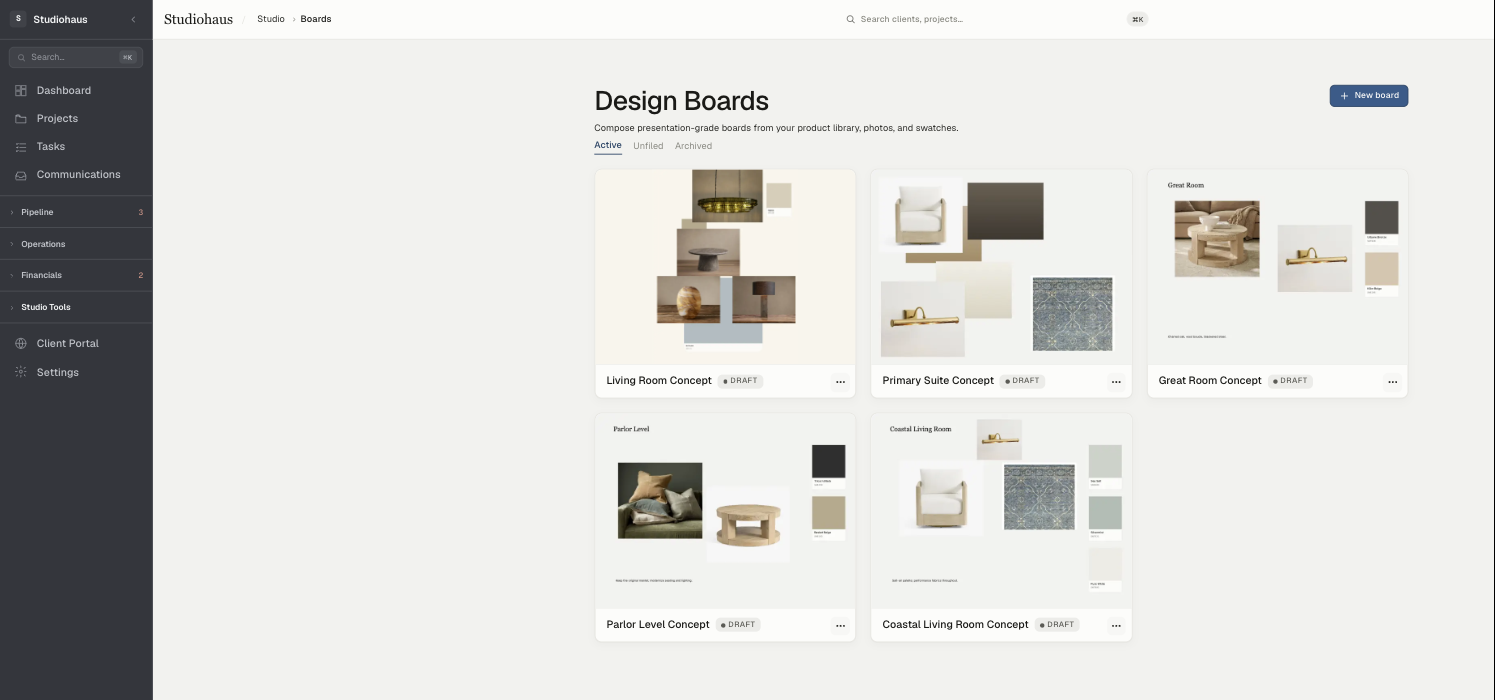
Boards live under Studio Tools → Design Boards, and every board belongs to a project.
Making a board
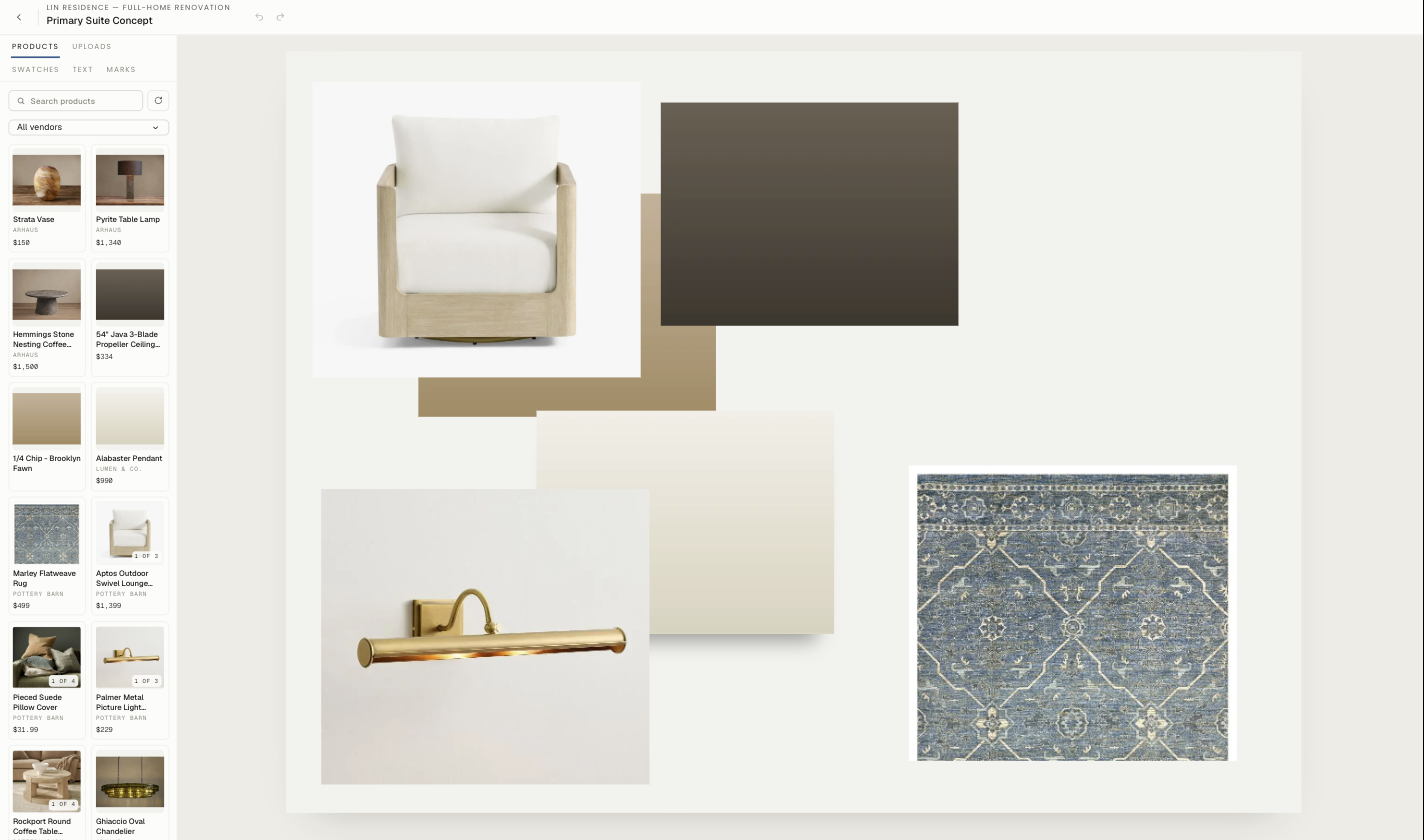
Click New board, name it, and pick the project it belongs to. You land on the editor: your library down the left, the artboard in the middle.
The board's aspect ratio sits in the top bar — 4:3 by default, which is what a laptop screen and a printed page both want. Everything saves as you go; the top bar says Saved when it has.
What you can put on a board
The left rail is organised by what you're reaching for:
- Products — everything in your product library, searchable, filterable by vendor. Click one and it lands on the artboard with its image, and the item quietly carries its name, vendor, and price for the spec list later. Products with several photos show a small
1 of 4badge — you choose which image the board uses. - Uploads — your own photography, floor plans, inspiration, anything you drag in.
- Swatches — flat colour blocks from your studio palette, for paint, stone, and fabric direction.
- Text — labels, room names, notes to the client.
- Marks — a catalogue of small procedural elements (arrows, rules, dimension marks) for pointing at things without leaving the app.
Arranging
Drag to move, drag a corner to scale, and use the layer controls to decide what sits in front. Undo and redo are in the top bar next to the board name, and they cover placement as well as deletion — the usual keyboard shortcuts work too.
A board is a composition, not a spreadsheet: nothing snaps to a grid unless you want it to, and there's no "right" number of items. Most concept boards land somewhere between six and fifteen.
Presenting
Present opens a full-screen render with the app chrome stripped away — the version to put on a monitor in a client meeting or share on a call. Nothing is editable in Present mode, so you can hand over your laptop without worrying.
When you're ready for the client to look at it in their own time, Share puts the board in their portal — see Sharing a board with your client.
Status, and where boards get filed
Every board carries a status pill — Draft while you're working, and it changes as the board is shared and approved. The index has three tabs:
- Active — boards in play.
- Unfiled — boards that aren't in a project folder yet.
- Archived — finished or abandoned boards, out of the way but still searchable.
Filing boards into folders happens on the project's own Design Boards tab — see Organising boards into folders.
Related
Related in Design boards
- 01Design boards→Organising boards into foldersFiling boards per project, and what Unfiled and Archived are for.2 min read· Updated Aug 22, 2026
- 02Design boards→Client approvals on a boardLetting clients approve or decline items on a shared board, and what happens to the board while they decide.3 min read· Updated Aug 22, 2026
- 03Design boards→Sharing a board with your clientPutting a board in the client portal, choosing what they see, and why a shared board locks.3 min read· Updated Aug 22, 2026