Sharing a board with your client
Putting a board in the client portal, choosing what they see, and why a shared board locks.
When a board is ready for the client, Share puts it in their portal. No attachment, no 40 MB email, no "can you resend that PDF" three weeks later — the board lives at a stable place they can return to.
Sharing also decides how much of the board's commercial detail the client sees, which is the part worth reading before you click.
What the client will see
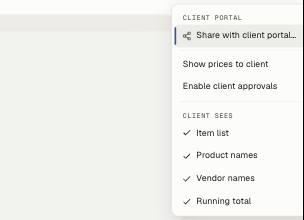
Open Share in the board's top bar. The top half of the menu controls the portal:
- Share with client portal… — the action itself.
- Show prices to client — off by default. Leave it off for a pure concept board; turn it on when the board is doing the work of a proposal.
- Enable client approvals — lets the client sign off item by item. See Client approvals on a board.
The bottom half — Client sees — is a checklist of what appears alongside the images:
- Item list — the running list of what's on the board.
- Product names
- Vendor names — worth a thought. Some studios show them freely; others keep sourcing to themselves until the contract is signed.
- Running total — only meaningful with prices on.
Sharing it
Pick Share with client portal… and a short dialog appears. There's one optional field: a message to your client, shown above the board in the portal. It's the difference between a board arriving cold and arriving with "here's the latest concept for the office — tap any item to approve or leave a note."
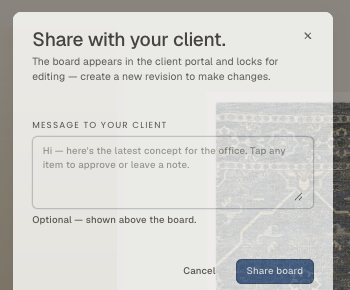
Click Share board and it appears in the client's portal under Library.
The lock, and why it exists
A shared board locks for editing. The top bar shows a Shared · locked pill, and the artboard stops accepting changes.
This is deliberate. The board your client is looking at, referring to in emails, and approving items on should not quietly change underneath them. A locked board means the thing they saw on Tuesday is the thing you're both discussing on Thursday.
Making changes: revisions
To change a shared board, click New revision. Studiohaus duplicates it and bumps the version in the name:
Primary Suite Concept→Primary Suite Concept rev1.1Primary Suite Concept rev1.1→Primary Suite Concept rev1.2
The new revision is unlocked and yours to edit; the shared one stays exactly as the client last saw it. When the revision is ready, share it — and now the client's portal has both, in order, which is its own kind of record.
If you'd rather not keep the history — you shared it by mistake, the client hasn't looked yet — unshare from the Share menu instead. That unlocks the original board for editing and removes it from the portal.
Related
Related in Design boards
- 01Design boards→Design boards: the basicsWhat a design board is, how to build one from your product library, and how to present it.3 min read· Updated Oct 26, 2026
- 02Design boards→Organising boards into foldersFiling boards per project, and what Unfiled and Archived are for.2 min read· Updated Aug 22, 2026
- 03Design boards→Client approvals on a boardLetting clients approve or decline items on a shared board, and what happens to the board while they decide.3 min read· Updated Aug 22, 2026