Billing from specs (deposits and balances)
Turn a selection of project specs into a draft invoice with one click — full amount, deposit only, or remaining balance.
On furnishing- and procurement-heavy projects, you charge the client based on the items you've specified — not by retyping line items into a blank invoice. The bill-from-specs flow turns a selection of specs into a draft invoice in one step, each line linked back to the spec it bills. It also handles the standard 50% deposit / 50% balance split natively, so collecting a deposit is built in rather than a workaround.
When to use this
Reach for bill-from-specs when:
- You're billing for actual items (furniture, finishes, fixtures) you've specified into the project.
- You're collecting a deposit before procurement, or the remaining balance on install.
- You want the invoice to "remember" which specs it billed (so you can tell at a glance which specs are still un-billed).
Use the manual Creating an invoice flow instead for design fees, retainers, hourly work — anything not tied to specific items.
How to bill specs
- Open the project and click the Project Library tab, where your specced items live.
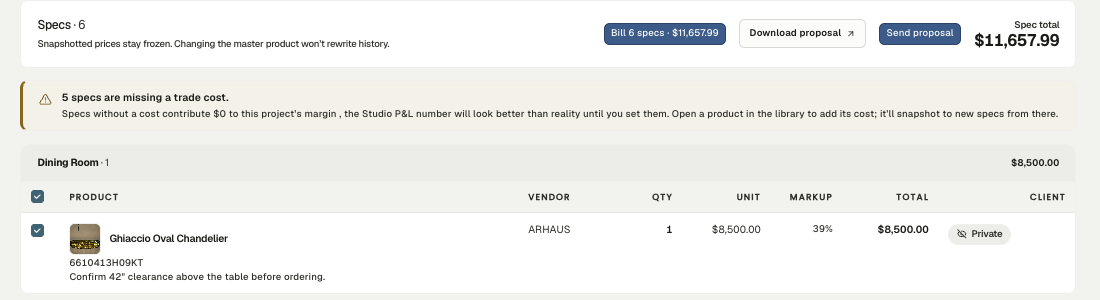
- Tick the checkbox on each spec you want to bill. The header shows Bill N specs with a running total.
- Click Bill N specs.
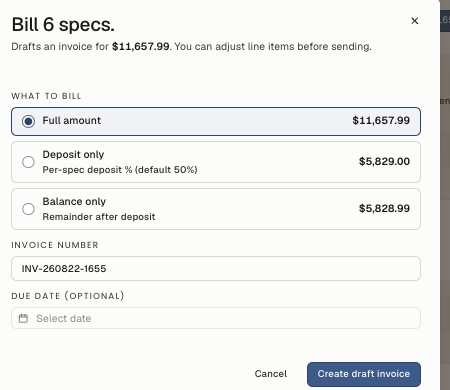
- The "Bill specs" dialog opens.
What to bill
The radio decides what portion of the selected specs lands on the invoice — the preview total updates live to match:
- Full amount — the whole specced amount (qty × unit price) for every selected spec. Use this when you're billing in one shot.
- Deposit only — just the deposit portion (50% by default, configurable per spec — see below). Use this before placing orders.
- Balance only — the remainder after the deposit. Use this on install, once the deposit invoice has gone out.
The loss warning
If any selected spec is priced below the trade cost on file — meaning you'd bill the client at a loss — the dialog shows a red banner: "N specs priced below trade cost. Billing at a loss. If that's intentional, proceed; otherwise update unit prices first."
It's a warning, not a block. Sometimes a loss is deliberate (a comp, a stocking item priced to win the line). If it's an accident, click Cancel, fix the unit prices in Project Library, and come back.
Number and due date
- Invoice number — the dialog suggests your next number; type over it if your scheme differs.
- Due date (optional) — net-30 from today is a common default.
Create it
Click Create draft invoice. Studiohaus:
- Drafts an invoice with one line item per selected spec.
- Links each line back to its spec — billing-status pills appear on those specs back in Project Library.
- Opens the invoice at status Draft, ready to review and send.
You can still edit the line items afterward — descriptions, tax flags, a one-off discount line — before setting the status to Sent.
Setting the deposit %
Every spec defaults to a 50% deposit. Override it per spec by editing the spec's row in Project Library — useful for a custom millwork order that takes 100% upfront, or a stock item your trade only needs 25% to start.
The percentage applies to the spec's full amount (qty × unit price). So a $4,000 spec at 50% splits into a $2,000 deposit and a $2,000 balance.
The deposit-then-balance flow in practice
A typical furnishing-project rhythm:
- Kickoff. Specs go into the project as you source. Deposit % stays at 50% for most.
- Before procurement. Select the specs that are ready to order, click Bill N specs, choose Deposit only, and send. The client pays the deposit invoice in their portal by card (or you mark it paid if they pay offline). Once it's paid, you place the orders.
- Install. When items are delivered and installed, select the same specs, click Bill N specs, choose Balance only, and send the second invoice.
Billing-status pills next to each spec — Deposit billed, Balance billed, Billed — let you scan a project and see exactly where the money stands.
Editing or starting over
Each invoice made this way is a normal draft. You can edit line items, add a discount or a tax-rate override, or delete the invoice entirely (the spec links go away too) and re-run the flow.
If you billed the wrong portion — picked Full when you meant Deposit only — the cleanest reset is delete-and-redo rather than editing amounts by hand, so each spec's billing status stays accurate.
Related
Related in Financials
- 01Financials→Creating an invoiceHow to put together a clean invoice — line items, tax, discounts, the works — and send it to a client.4 min read· Updated Oct 26, 2026
- 02Financials→Procurement: purchase orders and vendorsTracking what you've ordered, from whom, and when it's landing.3 min read· Updated Oct 25, 2026
- 03Financials→Connecting QuickBooks OnlineConnect QuickBooks Online so Studiohaus syncs your invoices and payments into your books automatically — clients still pay by card in their portal.3 min read· Updated Aug 22, 2026
- 04Financials→Connect your Stripe accountConnect your firm's existing Stripe account so clients can pay invoices online.1 min read· Updated Jun 12, 2026