Tasks across the studio
The studio-wide task list, the My Tasks view, and how priorities and due dates are meant to be used.
Tasks is the studio's to-do list, and it sits at the top of the left nav because it answers the question you ask most often: what has to happen, and by when.
A task belongs to a project (and therefore to a client), carries a due date, a priority, and an assignee. That's it — it's deliberately not a project-management app.
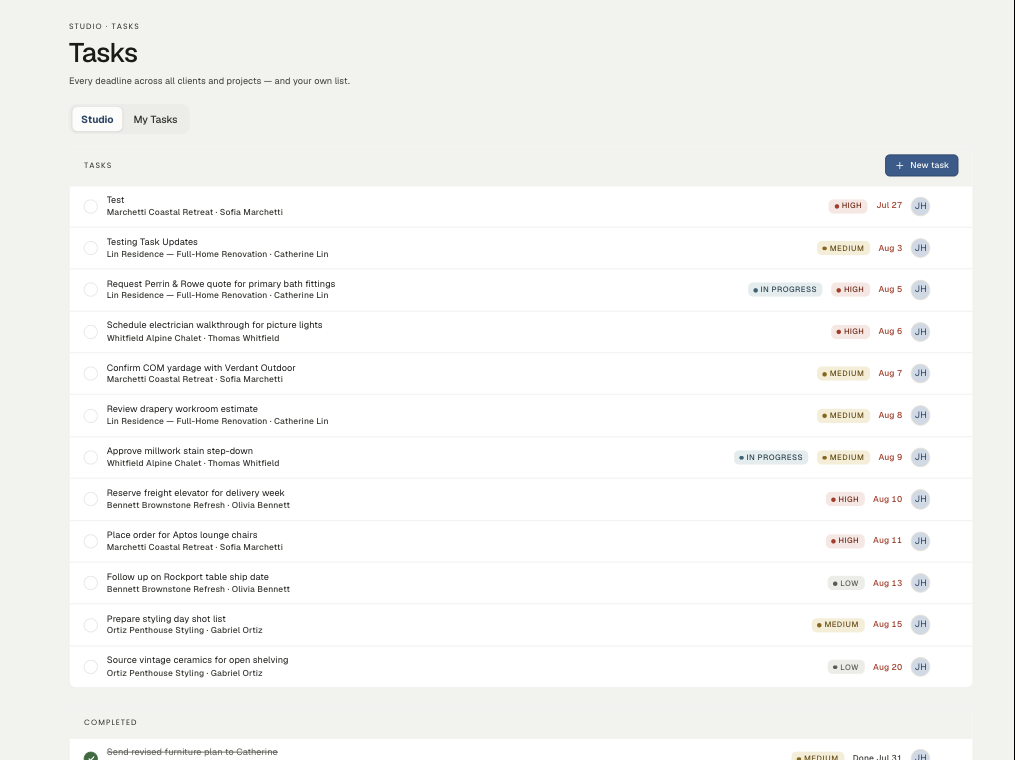
Two views
- Studio — every open task across every project and every person. This is the morning view: what does the studio owe anyone today.
- My Tasks — only what's assigned to you. This is the working view.
Completed tasks drop to a Completed section at the bottom with the date they were finished, so a week's progress is visible rather than vanishing.
Adding a task
New task asks for the essentials:
- What — the task itself. Write it as an action: "Request Perrin & Rowe quote for primary bath fittings" beats "plumbing."
- Project — which job it belongs to. The client's name rides along automatically.
- Due date — when it's actually needed, not when you hope to do it.
- Priority — High, Medium, or Low.
- Assignee — who's holding it.
Tasks also appear on their project's own Tasks tab, so you can work either way round: by project when you're in a job, by studio when you're planning a day.
Priority, honestly
Three priorities only, and they're worth using sparingly:
- High — something breaks if this slips. A lead time, an install date, a decision blocking someone else.
- Medium — the default. Real work with real dates.
- Low — worth doing, wouldn't hurt anyone if it waited a week.
If everything is High, nothing is. The In progress marker is the other half of this: it separates "I've started" from "it's still sitting there", which is the distinction that matters in a standup.
Where tasks come from
Most tasks you'll type. Some arrive on their own:
- Project templates pre-build phases and milestones when a project is created — see Reusable project templates.
- Workflow templates can generate the step sequence you run every project through, applied from the project itself.
Related
Related in Studio tools
- 01Studio tools→Reusable project templatesProject, workflow, document and design templates — what each one saves you.2 min read· Updated Oct 26, 2026
- 02Studio tools→The marketing libraryWhere studio-level files live — logos, guides, photography — and how folders keep them findable.2 min read· Updated Aug 22, 2026
- 03Studio tools→Importing and exporting CSVsBringing an existing product library or client list in from a spreadsheet, and getting your data back out.2 min read· Updated Aug 22, 2026
- 04Studio tools→Cutting out a product imageSilhouetting product photography on a board — the automatic pass, the point tool, and the brush.3 min read· Updated Aug 22, 2026