Reusable project templates
Project, workflow, document and design templates — what each one saves you.
Every studio runs the same play more than once. Templates is where you write that play down, so the twelfth project starts as organised as the one you had time to set up properly.
Templates live under Studio Tools → Templates, in five kinds.
Project templates
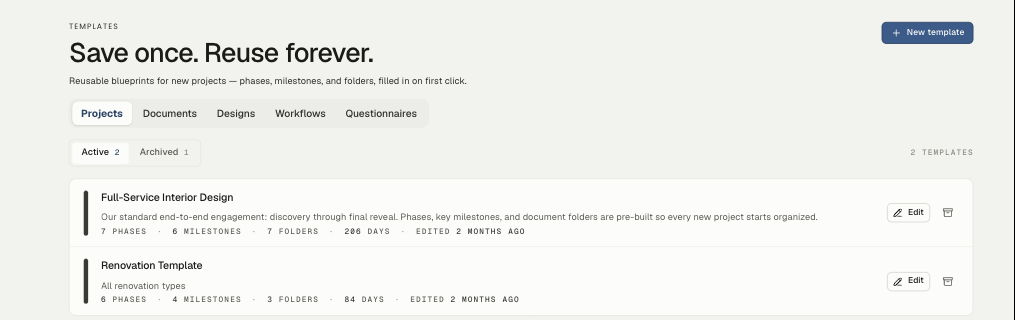
The heavy lifter. A project template holds the phases, milestones, and document folders a job needs, and applies them all when the project is created — so a new project arrives already shaped instead of empty.
The demo studio's Full-Service Interior Design template, for instance, carries 7 phases, 6 milestones, 7 folders, and a 206-day default span; a lighter Renovation template runs 6 phases over 84 days. Yours should mirror how you actually work, not an idealised process you'll ignore.
Each template shows its shape at a glance — phases, milestones, folders, total days, and when it was last edited.
Workflow templates
A workflow is the step sequence you run every project through: sourcing → mood board → client approval → procurement. Define it once under the Workflows tab, then apply it to a project from the project itself, and the steps arrive as tasks.
Defining one is available to anyone who can reach Templates.
Document and design templates
- Documents — proposals, contracts, change orders. They interpolate real values (client name, project address, totals) when you generate one, so you're editing a filled-in draft rather than a blank.
- Designs — reusable board layouts, for studios whose concept boards follow a house format.
Questionnaires
The client intake form, covered in its own article: Client questionnaires.
Archiving, not deleting
Templates archive rather than delete — the Archived tab keeps the old version reachable. A project built from a template keeps what it was given; changing the template later doesn't reach back and rewrite live projects.
Where to start
Don't write five templates on day one. Make the project you're running right now into a template when it's finished and you can see what it actually needed — then use it on the next one and fix what's wrong. Two rounds of that beats an afternoon of speculation.
Related
Related in Studio tools
- 01Studio tools→The marketing libraryWhere studio-level files live — logos, guides, photography — and how folders keep them findable.2 min read· Updated Aug 22, 2026
- 02Studio tools→Importing and exporting CSVsBringing an existing product library or client list in from a spreadsheet, and getting your data back out.2 min read· Updated Aug 22, 2026
- 03Studio tools→Cutting out a product imageSilhouetting product photography on a board — the automatic pass, the point tool, and the brush.3 min read· Updated Aug 22, 2026
- 04Studio tools→The product clipperInstalling the Chrome extension and clipping products straight from vendor sites into your library.2 min read· Updated Aug 22, 2026