The product clipper
Installing the Chrome extension and clipping products straight from vendor sites into your library.
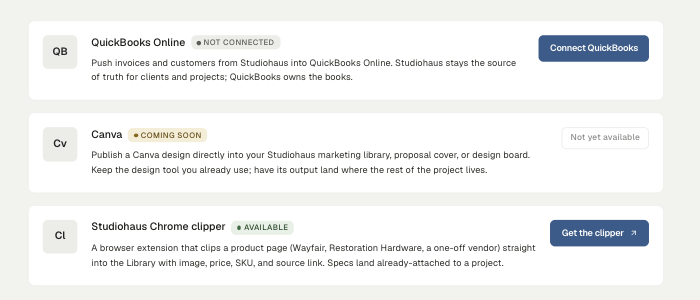
Specifying a room means living on vendor websites. The Studiohaus Chrome clipper is a browser extension that takes the product page you're looking at — Wayfair, Restoration Hardware, a one-off showroom site — and drops it into your library with the image, price, SKU, and source link already filled in.
The alternative is a screenshot, a copied URL, and retyping the price into a spreadsheet. This is the same job in one click.
Installing it
Go to Settings → Integrations and click Get the clipper. Install it in Chrome, then sign in once with your Studiohaus account — the extension clips into your studio, so it needs to know which one.
Clipping a product
On any product page, open the clipper. It reads the page and offers what it found:
- Image — the product photo. Pages with several images let you pick.
- Name, price, SKU, vendor
- Source link — the URL, kept so you can get back to the page months later when it's time to actually order.
Adjust anything that scraped oddly (vendor names are the usual culprit on smaller sites), choose whether it's going into your general library or straight onto a project, and clip it.
Where it lands
Clipped products go into Products — your library — where they behave like anything else you've added by hand: searchable, filterable by vendor, and available in the design board editor from the Products rail.
If you clipped it to a project, it also arrives already attached to that project's specs, which is what makes the flow worth the install: the thing you found at 11pm is already where the spec sheet will look for it.
What to know about prices
The clipper captures retail — what the page said. Your studio's cost and the price your client sees are separate fields on the product, because they're separate numbers: the trade cost you negotiated, your markup, and the retail figure the site advertises.
So a clip is a starting point, not a final spec. Fill in your cost when you know it, and the client-facing price follows your markup rules.
When a page won't clip cleanly
Some sites fight scrapers, and some are simply built strangely. When a clip comes back thin — no image, wrong price — the fastest recovery is to clip what it did get, then fix the fields on the product record. Nothing about a clipped product is locked; it's an ordinary library item that arrived quickly.
Related
Related in Studio tools
- 01Studio tools→Reusable project templatesProject, workflow, document and design templates — what each one saves you.2 min read· Updated Oct 26, 2026
- 02Studio tools→The marketing libraryWhere studio-level files live — logos, guides, photography — and how folders keep them findable.2 min read· Updated Aug 22, 2026
- 03Studio tools→Importing and exporting CSVsBringing an existing product library or client list in from a spreadsheet, and getting your data back out.2 min read· Updated Aug 22, 2026
- 04Studio tools→Cutting out a product imageSilhouetting product photography on a board — the automatic pass, the point tool, and the brush.3 min read· Updated Aug 22, 2026