Inviting team members
How to add a designer, admin, or partner to your firm — and what each role can do.
If you work with anyone — a junior designer, a partner, a project manager, a part-time bookkeeper — you'll want them in Studiohaus alongside you. This article covers how to send an invite, the roles you can assign, and how to control what each role can do.
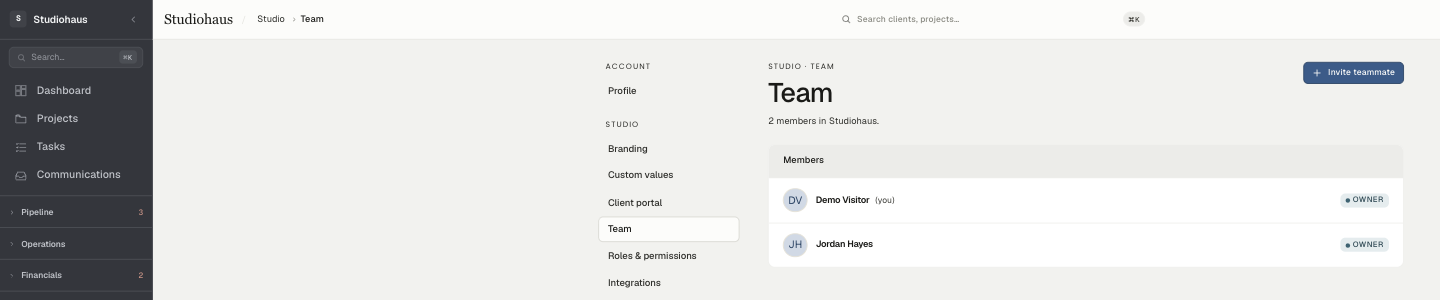
Where to find it
Open Settings from the left nav, then Team. You'll see everyone currently in the firm plus any pending invites.
Sending an invite
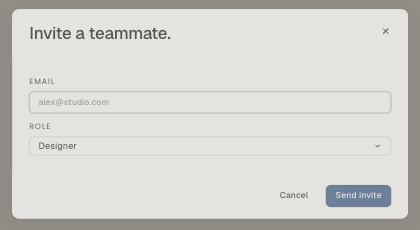
- Click Invite teammate at the top right.
- The dialog asks for two things:
- Email (required) — where the invite goes; they'll sign up with this address.
- Role (required) — defaults to Designer. Which roles you can assign depends on yours (more below).
- Click Send invite.
What happens next:
- A pending invite is created with a unique token.
- An email goes out (via Resend) with a sign-up link.
- The dialog also shows a copy-able link, in case the email gets lost — paste it into a chat or text.
The invitee opens the link, signs up with the invited email — email + password, or Google / Microsoft sign-in — and is attached to your firm with the role you picked. No further approval needed.
Roles
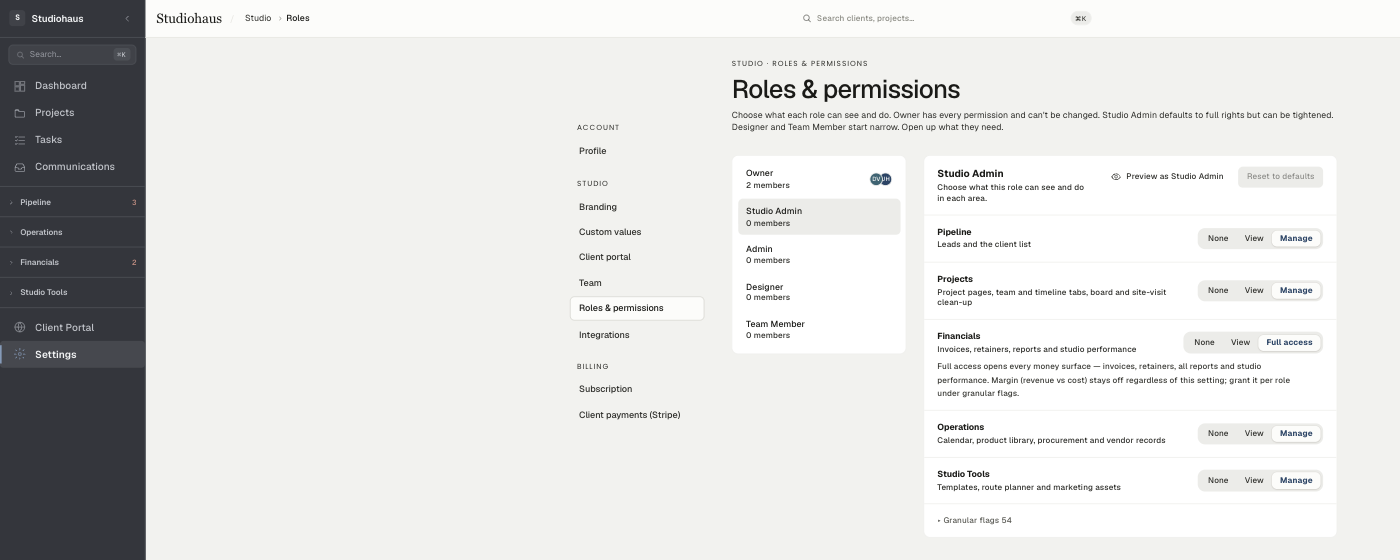
Studiohaus has five roles. Owner is fixed; the other four have sensible defaults you can tune.
- Owner — one per firm, the person who created it. Always has every permission (can't be restricted), and is the only role that manages billing and can transfer ownership.
- Studio Admin — full access by default, short of the owner-only billing and ownership actions. For a partner or business manager you trust with the whole studio.
- Admin — broad day-to-day access; can invite and manage Designers and Team Members. No billing or ownership.
- Designer — the default for most team members: works across leads, clients, and projects.
- Team Member — a lighter role for limited contributors.
Who can assign what: an Owner can invite anyone up to Studio Admin; an Admin can invite Designers and Team Members. (No one invites another Owner — ownership only moves via transfer.)
Tuning what each role can do
Exact permissions aren't hard-coded. Open Settings → Roles & permissions, pick a role down the left, and set what it can reach in each area of the app — Pipeline, Projects, Financials, Operations, Studio Tools — to None, View, or Manage. Financials has a third step, Full access, that opens every money surface; margin (revenue vs cost) stays off regardless and is granted separately. Below the areas, Granular flags exposes the individual capabilities if you need to be precise. Preview as lets you see the app through that role's eyes before you commit, and Reset to defaults puts a role back the way it shipped. The four non-owner roles are configurable; Owner stays full and locked so a firm can never strand itself without an all-access account.
Pending invites
Until the invitee signs up, the invite sits in the Pending section, where you can:
- Copy link — grab the URL again.
- Resend — fire the email again (same link).
- Revoke — kill the invite; the link stops working immediately.
Pending invites count toward your plan's seat limit. On Pro (3 seats), if all three are taken — by members or pending invites — the next invite blocks until one is accepted, revoked, or you add a seat. Extra seats are $9/month each. (Basic includes 1 seat; Enterprise is custom.)
Removing a team member
Open the team page, find the person, open the menu in their row, and pick Remove from firm. They lose access immediately. Their historical activity — the leads they created, the messages they sent — stays on the records; nothing they touched disappears, and you can reassign anything that was theirs.
Transferring ownership
To hand the firm over (selling the studio, stepping back, a partnership reshuffle), the owner uses Transfer ownership on the team page. The new owner must already be a team member. The swap is atomic: the new person becomes Owner with billing and ownership rights, and the previous owner becomes an Admin, in one move.
Related
Related in Settings & billing
- 01Settings & billing→Plans & billingHow the three Studiohaus plans differ, what the trial covers, and how to upgrade, downgrade, or cancel.4 min read
- 02Settings & billing→Storage limitsHow much file storage each plan includes, what counts toward it, and what to do if you're running low.2 min read
- 03Settings & billing→Adding seats to your planBuying extra user seats at $9/month, why pending invites hold a seat, and when a bigger plan is cheaper.2 min read· Updated Aug 22, 2026