Plans & billing
How the three Studiohaus plans differ, what the trial covers, and how to upgrade, downgrade, or cancel.
Studiohaus has three monthly plans. No annual plans, no setup fees, no contracts — switch any time from Settings → Subscription.
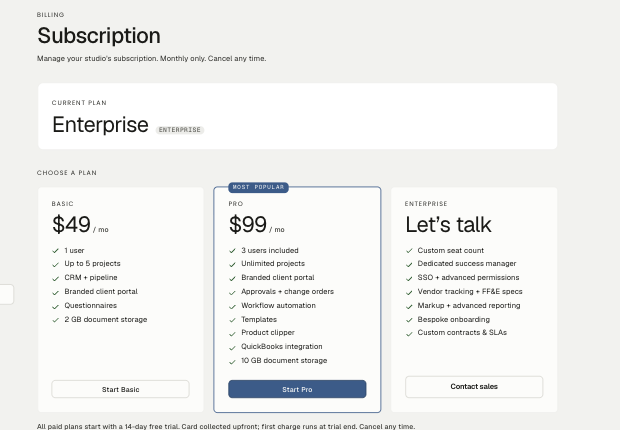
The plans at a glance
| Plan | Monthly | Seats | Projects | Storage | Highlights | |------|--------:|------:|---------:|--------:|-----------| | Basic | $49 | 1 | Up to 5 | 2 GB | Core CRM, invoicing, and the client portal | | Pro | $99 | 3 | Unlimited | 10 GB | Everything Studiohaus does — see below | | Enterprise | Let's talk | Custom | Unlimited | Unlimited | Pro, at scale |
Every plan includes the core CRM (leads, clients, projects), invoicing, questionnaires, and the client portal — so even on Basic you can share a branded portal and collect card payments from clients.
Pro adds the rest of the toolkit: approvals, templates, workflow automation, the Product Clipper, procurement and vendor tracking, QuickBooks sync, and advanced reporting. Enterprise is Pro with the limits lifted — unlimited seats and projects, unlimited storage — billed through a sales agreement rather than self-serve.
The trial
When you sign up, your firm starts a 14-day trial with full Pro features — portal, vendor tracking, QuickBooks sync, the works. No card is required to start, and nothing charges automatically: when the trial ends you pick a plan and enter payment then.
A banner at the top of the app counts down the days. Before it ends, pick the plan you want from Settings → Subscription. Nothing you created during the trial disappears — features outside your chosen plan just go behind an upgrade card.
Picking a plan
A rough guide:
- Basic — a solo designer running a handful of projects who wants a branded client portal and card payments, without the heavier operations tools.
- Pro — a small team (up to 3 seats) that runs procurement, tracks vendors, syncs to QuickBooks, or wants approvals, templates, and deeper reports.
- Enterprise — firms that need custom terms, SSO, or a seat count that no longer fits the self-serve tiers. Talk to us.
Need one more seat, not a bigger plan?
Basic and Pro can buy extra user licenses at $9/month each from Settings → Subscription, under Seats. The card there shows how many of your seats are in use — and a pending invite holds a seat just like a member does. Add or remove seats through Manage billing. Enterprise firms have a custom seat count instead.
How to upgrade
- Go to Settings → Subscription.
- Click Start Basic or Start Pro on the plan you want.
- You're sent to Stripe Checkout — enter your card.
- On success you land back in Studiohaus, on the new plan within seconds.
Upgrades take effect immediately and prorate against your remaining billing period. Enterprise isn't self-serve — reach out and we'll set it up.
How to downgrade or cancel
Both happen in the Stripe billing portal:
- Go to Settings → Subscription and click Manage billing.
- In the Stripe portal, use Update plan to move to a lower tier, or Cancel plan to stop the subscription.
- The change takes effect at the end of the current billing period — you keep your current plan until then.
If your firm has more seats or projects than the lower plan allows, trim down to fit before the change lands, or you'll be over-quota and blocked from some actions until you do.
If you cancel, the account stays active through the end of the period, then goes read-only: your data is all still there, but you can't create new projects or send new invoices. Resubscribe any time and pick up where you left off.
Failed payments
If a card declines, Stripe retries it over a few weeks. During that window your firm sits in past due with full access, and Stripe emails you at each step. If every retry fails, the subscription cancels and the firm goes read-only. Update your card any time from Settings → Subscription → Manage billing.
A note on the two kinds of "payment"
Two separate things, easy to mix up:
- Your subscription — what you pay Studiohaus, covered above (Stripe Checkout + the billing portal).
- Client payments — what your clients pay you. Those run through the client portal on Stripe, land in your own account, and sync to QuickBooks if you've connected it. See Creating an invoice.
Receipts
Stripe emails a receipt each month, and every past invoice is downloadable from the Stripe billing portal under Invoices.
Related
Related in Settings & billing
- 01Settings & billing→Storage limitsHow much file storage each plan includes, what counts toward it, and what to do if you're running low.2 min read
- 02Settings & billing→Adding seats to your planBuying extra user seats at $9/month, why pending invites hold a seat, and when a bigger plan is cheaper.2 min read· Updated Aug 22, 2026
- 03Settings & billing→Inviting team membersHow to add a designer, admin, or partner to your firm — and what each role can do.4 min read· Updated Jun 12, 2026